
In this blog post, you will learn how to use Firebase Realtime Database with CRUD Operations in Xamarin.Forms.

Introduction
Xamarin.Forms code runs on multiple platforms - each of which has its own filesystem. This means that reading and writing files is most easily done using the native file APIs on each platform. Alternatively, embedded resources are a simpler solution to distribute data files with an app.
Firebase
Firebase gives you functionality like analytics, databases, messaging and crash reporting so you can move quickly and focus on your users.

Firebase is a backend platform for building Web, Android, and iOS applications. It offers real-time database, different APIs, multiple authentication types and hosting platform. This is an introductory tutorial, which covers the basics of the Firebase platform and explains how to deal with its various components and sub-components.
Build apps with Firebase
- Real-time Database
- Storage
- Notifications
- Authentication
- Hosting
- Visual Studio 2017 or Later(Windows or Mac)
Start by creating a new Xamarin.Forms project. You’ll learn more by going through the steps yourself.or download source here
https://github.com/susairajs/Xamarin-Firebase-RealtimeDatabase
Visual Studio 2019 has more options in the opening window. Clone or check out the code from any repository or, open a project or solution for your computer.
Now, you need to click "Create a new project".

Now, filter by Project Type: Mobile
Choose the Mobile App (Xamarin. forms) project under C# and Mobile.

Name your app. You probably want your project and solution to use the same name as your app. Put it on your preferred location for projects and click "Create".

Now, select the blank app and target platforms - Android, iOS and Windows (UWP).

Subsequently, go to the solution. In there, you get all the files and sources of your project (.NET Standard). Now, select XAML page and double-click to open the MainPage.Xaml page.

You now have a basic Xamarin.Forms app. Click the Play button to try it out.
Create a project in Firebase
In this step, create a project in Firebase. Go to the following link.
https://console.firebase.google.com/
Click "Add Project".


Now, your project is ready, click continue.

In this step Choose Database under the Project Overview. Now click to Create the database.

In this step, give read and write rules.

Now, your Firebase Realtime Database ready. you can use your database api uri here.

Setting up the User Interface
Go to MainPage.Xaml and write the following code.
MainPage.xaml
Click the Play button to try it out.

NuGet Packages
Now, add the following NuGet Packages.
- FirebaseDatabase.net
Go to Solution Explorer and select your solution. Right-click and select "Manage NuGet Packages for Solution". Search "FirebaseDatabase.net" and add Package. Remember to install it for each project (.NET Standard, Android, iO, and UWP).

Create a Model
In this step, you can create a model for deserializing your response.
Person.cs
Connect Firebase
Now, Write the following code Connect your Firebase Realtime Database
Read All
Now, write the code to read all data from Firebase Realtime Database.
FirebaseHelper.cs
MainPage.Xaml.cs
Click the Play button to try it out.

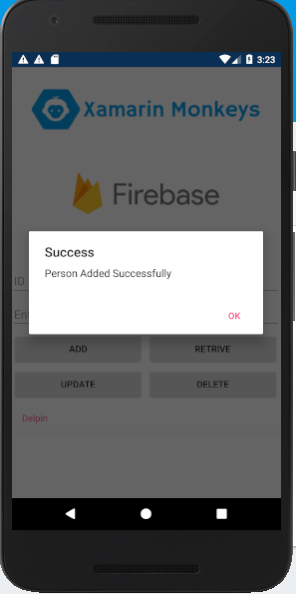
Insert
Now, write the following code to insert data into Firebase Realtime Database.
Click the Play button to try it out.
Read
Now, write the following code to read data from Firebase Realtime Database.
Click the Play button to try it out.

Update
Now, write the following code to update data to Firebase Realtime Database.
Click the Play button to try it out.

Delete
Now, write the following code to delete data from Firebase Realtime Database.
Click the Play button to try it out.

Full code
FirebaseHelper.cs
MainPage.Xaml.cs
I hope you have understood, how to use Firebase Realtime Database with CRUD Operations in Xamarin.Forms. Thanks for reading. Please share your comments and feedback.
Happy Coding :)
