Showing posts with label Internet Connectivity. Show all posts
Delpin Susai Raj Friday, 23 October 2020

Xamarin.Forms - Mobile Network Speed Check(Slow or Fast) in Android

In this blog post, you will learn how to check you mobile network speed(slow or speed) using android native in Xamarin.Forms.


Introduction

Xamarin.Forms code runs on multiple platforms - each of which has its own filesystem. This means that reading and writing files is most easily done using the native file APIs on each platform. Alternatively, embedded resources are a simpler solution to distribute data files with an app.

Prerequisites

  • Visual Studio 2017 or later (Windows or Mac)

Setting up a Xamarin.Forms Project

 Start by creating a new Xamarin.Forms project. You wíll learn more by going through the steps yourself.

Create a new or existing Xamarin forms(.Net standard) Project. With Android and iOS Platform. 


Create a Interface

Create a NetworkConnectivity

Following code will check the Mobile network connection and Check the Network status whether speed or slow.

NetworkConnectivity.cs

Android Implementation

Here, Implement the Interface and return the network status.

NetworkHelper.cs


Consume the Network helper

Here, you will call the Network helper class and you will get the network speed.

MainPage.Xaml


Here I shows the result in toast. 

MainPage.xaml.cs


Run


I hope you have understood you will learn how to check you mobile network speed(slow or speed) using android native in Xamarin.Forms.

Thanks for reading. Please share your comments and feedback. 

Happy Coding :)

Delpin Susai Raj Wednesday, 21 October 2020

Xamarin.Forms - Network Speed Monitor

 In this blog post, you will learn how to monitor you network speed in Xamarin.Forms.

Introduction

Xamarin.Forms code runs on multiple platforms - each of which has its own filesystem. This means that reading and writing files is most easily done using the native file APIs on each platform. Alternatively, embedded resources are a simpler solution to distribute data files with an app.

Prerequisites

  • Visual Studio 2017 or later (Windows or Mac)

Setting up a Xamarin.Forms Project

Start by creating a new Xamarin.Forms project. You wíll learn more by going through the steps yourself.

Create a new or existing Xamarin forms(.Net standard) Project. With Android and iOS Platform.


 Network Monitor 

Now, create a network helper class for check network connectivity in xamarin.froms.

NetworkHelper.cs


Consuming Network helper

Here, you will call the Network helper class and you will get the network speed.

MainPage.Xaml


Here I shows the result in toast. 

MainPage.xaml.cs


Run


I hope you have understood you will learn how to check network speed in Xamarin.Forms.

Thanks for reading. Please share your comments and feedback. 

Happy Coding :)

Delpin Susai Raj Tuesday, 24 July 2018

Xamarin.Forms- Check Internet Connection Using Xamarin Essentials

In this blog you will learn how to Check Internet Connectivity Using Xamarin.Essentials in Xamarin forms. 


Introduction

Related Posts

  1. Xamarin.Forms - AppInfo Using Xamarin Essentials
  2. Xamarin.Forms - DeviceInfo Using Xamarin Essentials


Xamarin.Forms code runs on multiple platforms - each of which has its own filesystem. This means that reading and writing files is most easily done using the native file APIs on each platform. Alternatively, embedded resources are a simpler solution to distribute data files with an app.

Xamarin.Essentials 


Xamarin.Essentials plugin provides 20+ cross-platform APIs for  mobile application development. Xamarin.Essentials API works with all Xamarin.Forms, Xamarin.Android, Xamarin.iOS, or UWP application that can be accessed from shared code. When we are developing Xamarin with Android, iOS and UWP apps but now Xamarin.Essentials overcome the problem, developers can access every native platform API using C#. This plugin provides many APIs so initially, there is no need of more plugins for Xamarin. Xamarin.Essentials plugin impacts your app's minimum size.


Platform Support

Xamarin.Essentials supports platforms and operating systems

Platform    Version

Android    4.4 (API 19) or earlier
iOS           10.0 or higher
UWP        10.0.16299.0 or earlier

Prerequisites
  • Visual Studio 2017(Windows or Mac)

Setting up a Xamarin.Forms Project

Start by creating a new Xamarin.Forms project.  you’ll learn more by going through the steps yourself.

Choose the Xamarin.Forms App Project type under Cross-platform/App in the New Project dialog.


Name your app, select “Use Portable Class Library” for shared code, and target both Android and iOS.


You probably want your project and solution to use the same name as your app. Put it in your preferred folder for projects and click Create.


You now have a basic Xamarin.Forms app. Click the play button to try it out.


Setting up the User Interface

Go to MainPage.Xaml and write the following code.

MainPage.xaml

Add Xamarin Essentials

In this step, add Xamarin.Essentials to your project. You can install Xamarin.Essentials via NuGet, or you can browse the source code on GitHub.

Go to Solution Explorer and select your solution. Right-click and select "Manage NuGet Packages for Solution". Search "Xamarin.Essentials" and add Package. Remember to install it for each project (PCL, Android, iO, and UWP).


Xamarin.Essentials requires platform-specific setup

Android

The following steps are necessary for Android.
  1. Xamarin.Essentials supports a minimum Android version of 4.4
  2. Target Android version for compiling must be 8.1, API level 27.
In the Android project's MainActivity that is launched Xamarin.Essentials must be initialized in the OnCreate method.

MainActivity.cs

Xamarin.Essentials must receive any OnRequestPermissionsResult. write the following code for runtime permission.

MainActivity.cs

iOS

No additional setup required.

UWP

No additional setup required.

In this step, write the following code for get App Information.

Connectivity.NetworkAccess
  1. Internet-Local and internet access
  2. Local – Local network access only(not internet access)
  3. ConstrainedInternet – Limited internet access
  4. None –Connectivity is not available.
  5. Unknown – Unable to determine internet connectivity.

MainPage.xaml.cs

using Xamarin.Forms;
using Xamarin.Essentials;
namespace XamarinEssentials
{
 public partial class MainPage : ContentPage
 {
  public MainPage()
  {
   InitializeComponent();
            var current = Connectivity.NetworkAccess;
            var profiles = Connectivity.Profiles;
            if (current == NetworkAccess.Internet)
            {
                lblNetworkStatus.Text = "Network is Available";
            }
            else
            {
                lblNetworkStatus.Text = "Network is Not Available";
            }

            if (profiles.Contains(ConnectionProfile.WiFi))
            {
                lblNetworkProfile.Text = profiles.FirstOrDefault().ToString();
            }
            else
            {
                lblNetworkProfile.Text = profiles.FirstOrDefault().ToString();
            }

  }
 }
}


Click the play button to try it out.


Related Post

Xamarin.Forms - AppInfo Using Xamarin Essentials

Xamarin.Forms - DeviceInfo Using Xamarin Essentials


I hope you have understood how to Check Internet Connectivity Using Xamarin Essentials in Xamarin.Forms.
Thanks for reading. Please share comments and feedback.
Delpin Susai Raj Tuesday, 31 October 2017

Check Internet Connectivity in Xamarin iOS

In this article, you will learn how to Check Internet Connectivity in Xamarin iOS, using Xamarin Studio.


Introduction

Xamarin is a platform to develop cross-platform and multi-platform apps (for example, Windows Phone, Android, iOS). In Xamarin platform, the code sharing concept is used. In Xamarin Studio, Visual Studio is also available.


Browse Code Here.


Two Ways To check Internet Connectivity
  1. Xam.Plugin.Connectivity Plugin 
  2. Reachability
Prerequisites
  • Xamarin Studio.
  • Xcode.
The steps given below are required to be followed in order to Check Internet Connectivity in Xamarin iOS, using Xamarin Studio.


Step 1

Go To Xamarin Studio.
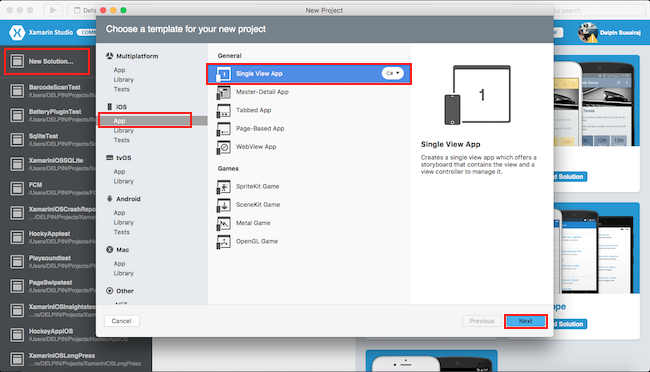
Click New Solution—> select iOS—>select App--> Choose single View App. Afterwards, click Next.


Step 2

In this step, configure your app. Give the app name (Ex: sample), Organization Identifier. Afterwards, click Next.


Step 3

In this step, give your project name (Ex: Sample) and solution name (Ex: Sample). Give the path of your project. Afterwards, click Create.


Step 4

Subsequently, go to the solution. In the solution, get all the files and sources in your project. Now, select Main.storyboard and double-click to open Main.storyboard page.


Step 5

After opening the Main.storyboard, you can design this page, as per your desire.

Step 6

In this step design your app.using storyboard and Toolbox.
  1. Button(btnCreateDB)
  2. Label(lblStatus)
  3. Label(lblCheck)

Step 7

In this step add one Package in your project.
  • Connectivity Plugin for Xamarin and Windows.
Go to Solution Explorer—>Package—>Add Package.

Now ChooseConnectivity Plugin for Xamarin and Windows and select Version. Afterwards, click Add Package.


Step 8

In this step, go to the ViewController.cs page. write the code given below.

ViewController.cs


Step 9

Now, go to Run option, choose Debug and the list of iPhone and iPad simulators, which are available. You can choose any one simulator and run it.


Output

After a few seconds, the app will start running on your iPhone simulator.You will see your app working successfully.


You can click Check Button. The internet Connection will check two ways is successfully.

If network is unavailable.


Summary

This was the process of how to Check Internet Connectivity in Xamarin iOS, using Xamarin Studio.

Delpin Susai Raj Thursday, 27 July 2017

Check Internet Connectivity in Xamarin iOS

In this article, you will learn how to Check Internet Connectivity in Xamarin iOS, using Xamarin Studio.

Introduction

Xamarin is a platform to develop cross-platform and multi-platform apps (for example, Windows phone, Android, iOS). In Xamarin platform, the code sharing concept is used. In Xamarin Studio, Visual Studio is also available.


Two Ways To check Internet Connectivity

  1. Xam.Plugin.Connectivity Plugin 
  2. Reachability

Prerequisites

  • Xamarin Studio.
  • Xcode.


The steps given below are required to be followed in order to Check Internet Connectivity in Xamarin iOS, using Xamarin Studio.


Step 1

Go To Xamarin Studio.
Click New Solution—> select iOS—>select App--> Choose single View App. Afterwards, click Next.


Step 2

In this step, configure your app. Give the app name (Ex:sample), Organization Identifier. Afterwards, click Next.


Step 3

In this step, give your project name (Ex: Sample) and solution name (Ex: Sample). Give the path of your project. Afterwards, click Create.


Step 4

Subsequently, go to the solution. In the solution, get all the files and sources in your project. Now, select Main.storyboard and double click to open Main.storyboard page.


Step 5

After opening the Main.storyboard, you can design this page, as per your desire.


Step 6

In this step design your app.using storyboard and Toolbox.
  1. Button(btnCreateDB)
  2. Label(lblStatus)
  3. Label(lblCheck)


Step 7


In this step add one Package in your project.

  • Xam.Plugin.Connectivity


Go to Solution Explorer—>Package—>Add Package.

Now Choose Xam.Plugin.Connectivity. Afterwards, click Add Package.


Step 8

In this step, go to the ViewController.cs page. write the code given below.

ViewController.cs 
using System;
using UIKit;

using Plugin.Connectivity;

namespace XamariniOSNetworkConnection
{
 public partial class ViewController : UIViewController
 {
  protected ViewController(IntPtr handle) : base(handle)
  {
   // Note: this .ctor should not contain any initialization logic.
  }

  public override void ViewDidLoad()
  {
   base.ViewDidLoad();

   // Perform any additional setup after loading the view, typically from a nib.
  }

  partial void BtnCheck_TouchUpInside(UIButton sender)
  {
   // Via Xam.Plugin.Connectivity Plugin
   if (CrossConnectivity.Current.IsConnected)
   {
    lblStatus.Text = "Network Available";
   }
   else
   {
    lblStatus.Text = "Network UnAvailable";
   }
   //Via Reachability
   if (Reachability.IsHostReachable("http://google.com"))
   {
    lblCheck.Text = "Available";
   }
   else
   {
    lblCheck.Text = "Unavailable";
   }
  }

  public override void DidReceiveMemoryWarning()
  {
   base.DidReceiveMemoryWarning();
   // Release any cached data, images, etc that aren't in use.
  }
 }
}


Step 9

Now, go to Run option , choose Debug and the list of iPhone and iPad simulators, which are available. You can choose any one simulator and run it.


Output

After a few seconds, the app will start running on your iPhone simulator.You will see your app working successfully.


You can click Check Button. The internet Connection will be check two ways is successfully.


Summary

This was the process of how to Check Internet Connectivity in Xamarin iOS , using Xamarin Studio.