Showing posts with label Network Check. Show all posts
Delpin Susai Raj Friday, 23 October 2020

Xamarin.Forms - Mobile Network Speed Check(Slow or Fast) in Android

In this blog post, you will learn how to check you mobile network speed(slow or speed) using android native in Xamarin.Forms.


Introduction

Xamarin.Forms code runs on multiple platforms - each of which has its own filesystem. This means that reading and writing files is most easily done using the native file APIs on each platform. Alternatively, embedded resources are a simpler solution to distribute data files with an app.

Prerequisites

  • Visual Studio 2017 or later (Windows or Mac)

Setting up a Xamarin.Forms Project

 Start by creating a new Xamarin.Forms project. You wíll learn more by going through the steps yourself.

Create a new or existing Xamarin forms(.Net standard) Project. With Android and iOS Platform. 


Create a Interface

Create a NetworkConnectivity

Following code will check the Mobile network connection and Check the Network status whether speed or slow.

NetworkConnectivity.cs

Android Implementation

Here, Implement the Interface and return the network status.

NetworkHelper.cs


Consume the Network helper

Here, you will call the Network helper class and you will get the network speed.

MainPage.Xaml


Here I shows the result in toast. 

MainPage.xaml.cs


Run


I hope you have understood you will learn how to check you mobile network speed(slow or speed) using android native in Xamarin.Forms.

Thanks for reading. Please share your comments and feedback. 

Happy Coding :)

Delpin Susai Raj Tuesday, 31 October 2017

Check Internet Connectivity in Xamarin iOS

In this article, you will learn how to Check Internet Connectivity in Xamarin iOS, using Xamarin Studio.


Introduction

Xamarin is a platform to develop cross-platform and multi-platform apps (for example, Windows Phone, Android, iOS). In Xamarin platform, the code sharing concept is used. In Xamarin Studio, Visual Studio is also available.


Browse Code Here.


Two Ways To check Internet Connectivity
  1. Xam.Plugin.Connectivity Plugin 
  2. Reachability
Prerequisites
  • Xamarin Studio.
  • Xcode.
The steps given below are required to be followed in order to Check Internet Connectivity in Xamarin iOS, using Xamarin Studio.


Step 1

Go To Xamarin Studio.
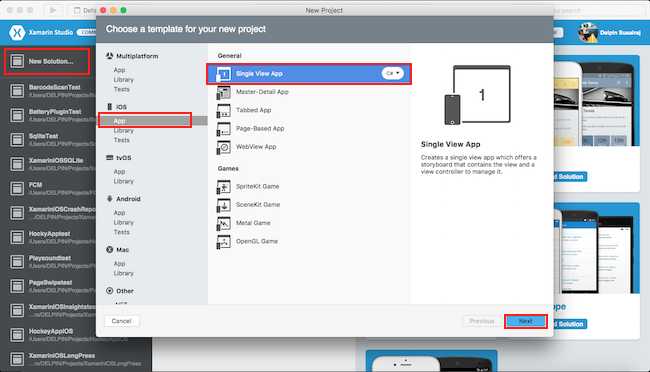
Click New Solution—> select iOS—>select App--> Choose single View App. Afterwards, click Next.


Step 2

In this step, configure your app. Give the app name (Ex: sample), Organization Identifier. Afterwards, click Next.


Step 3

In this step, give your project name (Ex: Sample) and solution name (Ex: Sample). Give the path of your project. Afterwards, click Create.


Step 4

Subsequently, go to the solution. In the solution, get all the files and sources in your project. Now, select Main.storyboard and double-click to open Main.storyboard page.


Step 5

After opening the Main.storyboard, you can design this page, as per your desire.

Step 6

In this step design your app.using storyboard and Toolbox.
  1. Button(btnCreateDB)
  2. Label(lblStatus)
  3. Label(lblCheck)

Step 7

In this step add one Package in your project.
  • Connectivity Plugin for Xamarin and Windows.
Go to Solution Explorer—>Package—>Add Package.

Now ChooseConnectivity Plugin for Xamarin and Windows and select Version. Afterwards, click Add Package.


Step 8

In this step, go to the ViewController.cs page. write the code given below.

ViewController.cs


Step 9

Now, go to Run option, choose Debug and the list of iPhone and iPad simulators, which are available. You can choose any one simulator and run it.


Output

After a few seconds, the app will start running on your iPhone simulator.You will see your app working successfully.


You can click Check Button. The internet Connection will check two ways is successfully.

If network is unavailable.


Summary

This was the process of how to Check Internet Connectivity in Xamarin iOS, using Xamarin Studio.