Showing posts with label DependencyService. Show all posts
Delpin Susai Raj Wednesday, 24 April 2019

Xamarin.Forms - Custom Entry

In this blog post, you will learn how to create a borderless entry with rounded corner in Xamarin.Forms.

Introduction

Xamarin.Forms code runs on multiple platforms - each of which has its own filesystem. This means that reading and writing files is most easily done using the native file APIs on each platform. Alternatively, embedded resources are a simpler solution to distribute data files with an app.

Custom Renderers

Xamarin.Forms user interfaces are rendered using the native controls of the target platform, allowing Xamarin.Forms applications to retain the appropriate look and feel for each platform. Custom Renderers let developers override this process to customize the appearance and behavior of Xamarin.Forms controls on each platform.

Prerequisites


  • Visual Studio 2017 or later (Windows or Mac)

Setting up a Xamarin.Forms Project

Start by creating a new Xamarin.Forms project. You’ll learn more by going through the steps yourself.

Visual Studio 2019 has more options in the opening window. Clone or check out the code from any repository or, open a project or solution for your computer.

Now, you need to click "Create a new project".
Now, filter by Project Type: Mobile

Choose the Mobile App (Xamarin. forms) project under C# and Mobile.

Name your app. You probably want your project and solution to use the same name as your app. Put it on your preferred location for projects and click "Create".

Now, select the blank app and target platforms - Android, iOS and Windows (UWP).

Subsequently, go to the solution. In there, you get all the files and sources of your project (.NET Standard). Now, select the XAML page and double-click to open the MainPage.Xaml page.

You now have a basic Xamarin.Forms app. Click the Play button to try it out.

Create a Custom Entry

Now, create an Inherit class form Entry for Customizing the Entry control.
write the following code.

CustomEntry.cs

Android Implementation

In this step, create an inherit Class form, EntryRenderer for customizing the Entry control.

Now, write the code given below.

CustomEntryRenderer.cs

iOS Implementation

In this step, create an inherit Class form, EntryRenderer for customizing the Entry control.

Now, write the code given below.

CustomEntryRenderer.cs

Setting up the User Interface

Go to MainPage.Xaml and write the following code.

MainPage.xaml

Click the "Play" button to try it out.


I hope you have understood how to create a borderless entry with rounded corner in Xamarin.Forms..
Thanks for reading. Please share your comments and feedback. Happy Coding :)
Delpin Susai Raj Wednesday, 30 May 2018

Xamarin.Forms - Capture ScreenShot Using DependencyService

In this blog, you will learn How to Capture ScreenShot Using DependencyService in Xamarin.forms


Introduction

Xamarin.Forms code runs on multiple platforms - each of which has its own filesystem. This means that reading and writing files are the most easily done tasks using native file APIs on each platform. Alternatively, embedded resources are also a simpler solution to distribute the data files with an app.


DependencyService

DependencyService allows apps to call into platform-specific functionality from shared code. This functionality enables Xamarin.Forms apps to do anything that a native app can do.

DependencyService is a dependency resolver. In practice, an interface is defined and DependencyService finds the correct implementation of that interface from the various platform projects.


Xamarin.Forms apps need three components to use DependencyService


  1. Interface – The required functionality is defined by an interface in shared code.
  2. Implementation Per Platform – Classes that implement the interface must be added to each platform project.
  3. Registration – Each implementing class must be registered with DependencyService via a metadata attribute. Registration enables DependencyService to find the implementing class and supply it in place of the interface at runtime.
  4. Call to DependencyService – Shared code needs to explicitly call DependencyService to ask for implementations of the interface.


Prerequisites
  • Visual Studio 2017(Windows or Mac)
Setting up a Xamarin.Forms Project

Start by creating a new Xamarin.Forms project. You’ll learn more by going through the steps yourself.
Choose the  Cross-platform App project under Visual C#-->Cross-platform in the New Project dialog.


Now Select the Blank App and Choose Portable Class Library(PCL).


You now have a basic Xamarin.Forms app. Click the Play button to try it out.


Setting up the User Interface.

Go to MainPage.Xaml and write the following code.


MainPage.Xaml


Click the Play button to try it out.


Creating Interface

Create - interface in Xamarin.Forms PCL.

Go to Solution—>PCL—>Right click—>New—>Interface—>IScreen.cs.


Now, write the following code.

IScreen.cs


Implementation per platform

Android Implementation

Go to Solution—>Android —>Right click—>New—>Class—> ScreenHelper.cs


Now, write the following code for Capture Current Screen.


ScreenHelper.cs

Call to DependencyService

In this step, call the DependencyService for your PCL.


MainPage.Xaml.cs


Click the Play button to try it out.


I hope you have understood how to Capture ScreenShot Using DependencyService.

Thanks for reading. Please share comments and feedback.


Delpin Susai Raj Monday, 5 March 2018

Xamarin.Forms - Contact Picker Using DependencyService

In this article, we will learn how to pick a Device contacts using DependencyService


Introduction

Xamarin.Forms code runs on multiple platforms - each of which has its own filesystem. This means that reading and writing files are the most easily done tasks using native file APIs on each platform. Alternatively, embedded resources are also a simpler solution to distribute the data files with an app.


DependencyService

DependencyService allows apps to call into platform-specific functionality from shared code. This functionality enables Xamarin.Forms apps to do anything that a native app can do.

DependencyService is a dependency resolver. In practice, an interface is defined and DependencyService finds the correct implementation of that interface from the various platform projects.


Xamarin.Forms apps need three components to use DependencyService

  1. Interface – The required functionality is defined by an interface in shared code.
  2. Implementation Per Platform – Classes that implement the interface must be added to each platform project.
  3. Registration – Each implementing class must be registered with DependencyService via a metadata attribute. Registration enables DependencyService to find the implementing class and supply it in place of the interface at runtime.
  4. Call to DependencyService – Shared code needs to explicitly call DependencyService to ask for implementations of the interface.

Prerequisites
  • Visual Studio 2017(Windows or Mac)
Setting up a Xamarin.Forms Project

Start by creating a new Xamarin.Forms project. You’ll learn more by going through the steps yourself.

Choose the  Cross-platform App project under Visual C#-->Cross-platform in the New Project dialog.


Now Select the Blank App and Choose Portable Class Library(PCL).


You now have a basic Xamarin.Forms app. Click the Play button to try it out.


Creating Interface

Create - interface in Xamarin.Forms PCL.

Go to Solution—>PCL—>Right click—>New—>Interface—>IContacts.cs.


Now, write the following code.

IContacts.cs


Creating Model

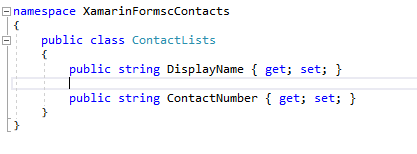
Go to Solution—>PCL—>Right click—>New—>Class—>ContactLists.cs.


Now, write the following code for holding Contacts.

ContactLists.cs


Implementation per platform-Android Implementation

Go to Solution—>Android —>Right click—>New—>Class—> ContactHelper.cs


Now, write the following code for Pick Contacts.

ContactHelper.cs


UWP Implementation

Go to Solution—>UWP —>Right click—>New—>Class—> ContactHelper.cs


Now, write the following code for Pick Contacts.

ContactHelper.cs


Setting up the User Interface.

Go to MainPage.Xaml and write the following code.

MainPage.Xaml


Call to DependencyService

In this step, call the DependencyService for your PCL.

MainPage.Xaml.cs


In this Step Give permission to access contacts form android devices
manifest.xml


In this Step Give permission to access contacts form Windows devices


Click the Play button to try it out.


I hope you have understood how to Pick Contacts using DependencyService.

Thanks for reading. Please share comments and feedback.

Delpin Susai Raj Thursday, 21 December 2017

Xamariin.Forms- Working With Directory Using DependencyService

In this article you will learn how to Create a Directory , Rename Directory and Delete using DependencyService in Xamarin forms. 


Introduction


Xamarin.Forms code runs on multiple platforms - each of which has its own filesystem. This means that reading and writing files is most easily done using the native file APIs on each platform. Alternatively, embedded resources are a simpler solution to distribute data files with an app.

User-writable-storage can be implemented natively and then accessed using the DependencyService .

DependencyService

DependencyService allows apps to call into platform-specific functionality from shared code. This functionality enables Xamarin.Forms apps to do anything that a native app can do.

DependencyService is a dependency resolver. In practice, an interface is defined and DependencyService finds the correct implementation of that interface from the various platform projects.


Xamarin.Forms apps need three components to use DependencyService:

  • Interface – The required functionality is defined by an interface in shared code.
  • Implementation Per Platform – Classes that implement the interface must be added to each platform project.
  • Registration – Each implementing class must be registered with DependencyService via a metadata attribute. Registration enables DependencyService to find the implementing class and supply it in place of the interface at run time.
  • Call to DependencyService – Shared code needs to explicitly call DependencyService to ask for implementations of the interface.

Following Topic Covered.

1.Create Directory 
2.Rename Directory 
3.Delete Directory

Related Post: Xamarin.Forms - Working With Files Using DependencyService

Prerequisites
  • Visual Studio 2017(Windows or Mac)
The steps given below are required to be followed in order to Create a Directory , Rename Directory and Delete using DependencyService in Xamarin.Forms, using Visual Studio.

Setting up a Xamarin.Forms Project


Start by creating a new Xamarin.Forms project.  you’ll learn more by going through the steps yourself.

Choose the Xamarin.Forms App Project type under Cross-platform/App in the New Project dialog.


Name your app, select “Use Portable Class Library” for shared code, and target both Android and iOS.


You probably want your project and solution to use the same name as your app. Put it in your preferred folder for projects and click Create.


You now have a basic Xamarin.Forms app. Click the play button to try it out.


Creating Interface

Create a interface in Xamarin.Forms PCL

Go to Solution—>PCL—>Right click—>New—>Empty Class—>IDirectory.cs


Now, Write the following code.

IDirectory.cs


Implementation per Platform

iOS Implementation

Go to Solution—>iOS—>Right click—>New—>Empty Class—> DirectoryHelper.cs


Now, Write the following code given below.

DirectoryHelper.cs


Android Implementation

Go to Solution—>Droid—>Right click—>New—>Empty Class—> DirectoryHelper.cs


Now, Write the following code given below.

DirectoryHelper.cs


Setting up the User Interface. 

Go MainPage.Xaml and write following code.

MainPage.Xaml


Call to DependencyService

In this step Call to DependencyService for your PCL.


Click the play button to try it out.


I hope you will understand how to Create Directory , Rename Directory and Delete a file using use DependencyService.


Summary

This was the process of how to reate Directory , Rename Directory and Delete using DependencyService in Xamarin.Forms.

Thanks For Reading.

Please share comments and feedback.